
Note: The goal of this project goes beyond simply deploying Jenkins on AWS. I wanted to lay the foundation for an automated DevOps infrastructure — one capable of integrating the essential tools across an application’s entire lifecycle, from development to production. My intent is to build a reproducible, maintainable, and scalable technical base that automates infrastructure provisioning, service deployment, and eventually CI/CD orchestration. This project is also a concrete learning opportunity: experiment, test, make mistakes, correct them, and grow through real-world DevOps practice.
The Problem
The initial need seemed straightforward: have a working Jenkins instance on AWS. But in practice, I didn’t want a manual, fragile installation that would be hard to reproduce.
I wanted a solution capable of:
- creating the infrastructure automatically;
- configuring the machine at startup;
- deploying Jenkins in an isolated environment;
- securing external access without directly exposing Jenkins’ native port;
- serving as a foundation for other DevOps components in the future.
In other words, the real subject wasn’t “install Jenkins” — it was building the first blocks of an automated DevOps infrastructure.
Technical Choices
For this implementation, I selected the following components:
| Tool | Role |
|---|---|
| AWS | Infrastructure hosting |
| Terraform | Declarative provisioning |
| EC2 | Host machine |
| Docker | Running Jenkins and services |
| Jenkins | First CI/CD building block |
| Cloudflare Tunnel | Secure exposure without open ports |
| IAM | Privilege restriction, no root account usage |
This stack keeps the architecture relatively simple while staying aligned with automation, modularity, and security.
Target Architecture
The architecture relies on a clear execution chain.
From my local machine, I run Terraform. Terraform communicates with AWS to create the EC2 instance and minimal network configuration. On first boot, the instance runs a bootstrap script via user_data. This script installs Docker, prepares service configuration, and deploys both Jenkins and Cloudflare Tunnel.
Jenkins runs in a Docker container and persists its data through a dedicated volume. Cloudflare Tunnel establishes an outbound connection to Cloudflare, allowing access to Jenkins via a dedicated hostname without publicly exposing port 8080.
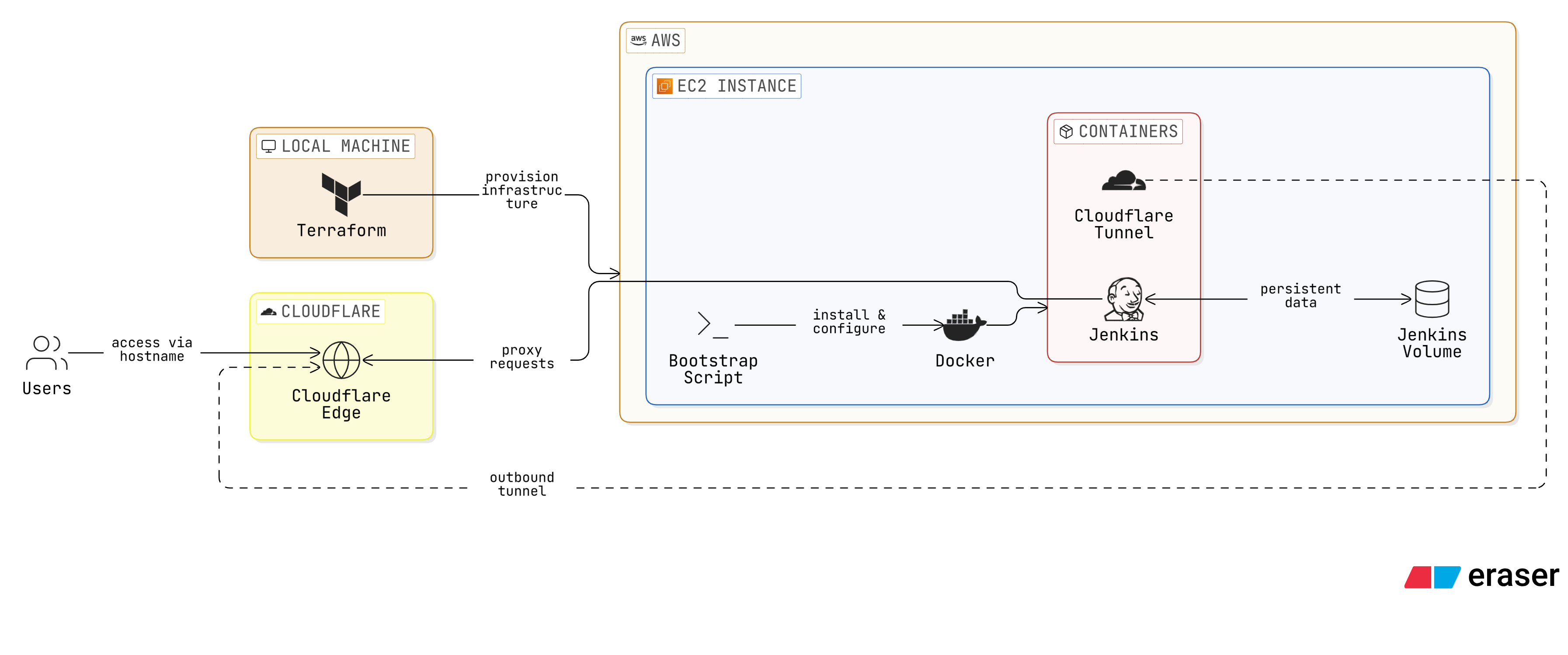
This architecture combines deployment automation, service isolation, and reduced direct network exposure.
Project Structure
To keep the code maintainable, I organized the Terraform project with a modular approach.
.
├── LICENSE
├── README.md
└── terraform
    ├── environments
    │   └── dev
    │       ├── main.tf
    │       ├── outputs.tf
    │       ├── terraform.tfvars
    │       └── variables.tf
    ├── main.tf
    ├── modules
    │   └── ec2_jenkins
    │       ├── main.tf
    │       ├── outputs.tf
    │       ├── README.md
    │       └── variables.tf
    └── provider.tf
This structure separates:
- the reusable logic of the
ec2_jenkinsmodule; - the environment-specific configuration under
dev; - the global provider configuration.
This is especially useful if I later want to add a staging or prod environment, or reuse the module for other services.
Step-by-Step Implementation
1. AWS Provider Configuration
The first step was configuring Terraform to communicate with AWS.
provider "aws" {
  region = var.aws_region
}
I don’t configure the provider directly inside modules — I prefer keeping control at the root module level. A dedicated variable handles the region:
variable "aws_region" {
  description = "AWS region"
  type        = string
  default     = "eu-west-3"
}
And in terraform.tfvars:
aws_region = "eu-west-3"
2. AWS Credentials Setup
Before running Terraform, I needed to configure my AWS credentials locally. Without this step, the entire chain is blocked from the start.
On first attempt, I hit the classic error:
No valid credential sources found
This simply means Terraform found no valid AWS credentials on the local machine.
To store and retrieve secrets securely, I used AWS Secrets Manager. The secrets (Access Key ID, Secret Access Key) are stored there and retrieved via the CLI at configuration time:
aws secretsmanager get-secret-value --secret-id <secret-name> --query SecretString --output text
Security tip: notice the leading space before the command. In
bashandzsh, prefixing a command with a space prevents it from being saved in the shell history (~/.bash_history/~/.zsh_history). This is a simple but effective precaution for any command that handles secrets or tokens.
Once the values are retrieved, configure the local profile:
aws configure
To confirm the identity is correctly recognized:
aws sts get-caller-identity
3. EC2 Module for Jenkins
With the provider ready, I built the main module responsible for creating the EC2 instance. This module handles the core logic: AMI lookup, instance creation, security group configuration, and bootstrap execution via user_data.
resource "aws_instance" "jenkins" {
  ami           = data.aws_ami.amazon_linux_2023.id
  instance_type = var.instance_type
  key_name      = var.key_name

  vpc_security_group_ids = [aws_security_group.jenkins_sg.id]

  user_data = templatefile("${path.module}/user_data.sh.tpl", {
    cloudflare_tunnel_token = var.cloudflare_tunnel_token
  })

  tags = {
    Name = "jenkins-ec2"
  }
}
This resource doesn’t just create a virtual machine — it also triggers the entire initialization process.
4. Instance Type and First Error
On the first deployment, I encountered an error related to the instance type:
InvalidParameterCombination: The specified instance type is not eligible for Free Tier
I fixed this by switching to a more appropriate type:
variable "instance_type" {
  description = "EC2 instance type"
  type        = string
  default     = "t3.micro"
}
This illustrates a concrete reality of infrastructure projects: you often need to adjust theory to match account constraints, region availability, and quotas.
5. Minimal Network Configuration
I didn’t want to expose Jenkins publicly on its native port 8080. I configured a minimal security group, allowing only what was strictly necessary.
resource "aws_security_group" "jenkins_sg" {
  name = "jenkins-sg"

  ingress {
    description = "SSH access"
    from_port   = 22
    to_port     = 22
    protocol    = "tcp"
    cidr_blocks = [var.allowed_ssh_cidr]
  }

  egress {
    description = "Allow outbound traffic"
    from_port   = 0
    to_port     = 0
    protocol    = "-1"
    cidr_blocks = ["0.0.0.0/0"]
  }
}
SSH access is restricted to an authorized IP range. Jenkins doesn’t need to be publicly accessible since it will be served through Cloudflare Tunnel. This decision directly reduces the network exposure surface.
6. Automated Instance Bootstrap
One of the most important aspects of this project is bootstrap automation. I wanted to avoid any manual connection to the instance to install Docker or start services. I used user_data to run a shell script on first boot.
This script handles everything in a single pass: installing Docker from the official Debian repository, writing the configuration files, and starting the services.
#!/bin/bash

# =============================================================================
# Install Docker and start Jenkins with Cloudflare Tunnel
#
# This script is executed by Terraform when the EC2 instance is created.
# It installs Docker, starts Jenkins with Cloudflare Tunnel, and configures
# the necessary environment variables.
#
# author: Sony level
# =============================================================================

set -euxo pipefail

LOG=/var/log/jenkins-setup.log

echo "[$(date '+%Y-%m-%d %H:%M:%S')] INFO  Starting Jenkins setup" >> "$LOG"

# Update system and install prerequisites
echo "[$(date '+%Y-%m-%d %H:%M:%S')] INFO  Updating system packages" >> "$LOG"
apt-get update -y
apt-get install -y ca-certificates curl gnupg
echo "[$(date '+%Y-%m-%d %H:%M:%S')] INFO  Prerequisites installed" >> "$LOG"

# Install Docker from official Debian repository
echo "[$(date '+%Y-%m-%d %H:%M:%S')] INFO  Installing Docker" >> "$LOG"
install -m 0755 -d /etc/apt/keyrings
curl -fsSL https://download.docker.com/linux/debian/gpg \
  | gpg --dearmor -o /etc/apt/keyrings/docker.gpg
chmod a+r /etc/apt/keyrings/docker.gpg

echo "deb [arch=$(dpkg --print-architecture) signed-by=/etc/apt/keyrings/docker.gpg] \
  https://download.docker.com/linux/debian \
  $(. /etc/os-release && echo "$VERSION_CODENAME") stable" \
  | tee /etc/apt/sources.list.d/docker.list > /dev/null

apt-get update -y
apt-get install -y docker-ce docker-ce-cli containerd.io \
  docker-buildx-plugin docker-compose-plugin

systemctl enable --now docker
echo "[$(date '+%Y-%m-%d %H:%M:%S')] INFO  Docker installed and started" >> "$LOG"

# Create application directory
mkdir -p /opt/jenkins
echo "[$(date '+%Y-%m-%d %H:%M:%S')] INFO  Created /opt/jenkins" >> "$LOG"

# Write .env file with sensitive values (not stored in docker-compose.yml)
cat > /opt/jenkins/.env <<ENVEOF
TUNNEL_TOKEN=${cloudflare_tunnel_token}
ENVEOF
chmod 600 /opt/jenkins/.env
echo "[$(date '+%Y-%m-%d %H:%M:%S')] INFO  Written /opt/jenkins/.env" >> "$LOG"

# Write compose.yaml (rendered by Terraform at provision time)
cat > /opt/jenkins/compose.yaml <<'COMPOSEEOF'
${compose_content}
COMPOSEEOF
echo "[$(date '+%Y-%m-%d %H:%M:%S')] INFO  Written /opt/jenkins/compose.yaml" >> "$LOG"

# Start services
echo "[$(date '+%Y-%m-%d %H:%M:%S')] INFO  Starting Jenkins and Cloudflare Tunnel" >> "$LOG"
cd /opt/jenkins
docker compose up -d

echo "[$(date '+%Y-%m-%d %H:%M:%S')] INFO  Setup complete" >> "$LOG"
A few important points in this script:
- Docker is installed from the official Debian repository with GPG verification — not via
snapor a system package; - the
.envfile is created with600permissions to protect the tunnel token; - the
compose.yamlis injected by Terraform via the${compose_content}variable, avoiding duplication in the script; - every step is logged to
/var/log/jenkins-setup.logfor easier debugging if the startup fails.
7. Deploying Jenkins and Cloudflare Tunnel with Docker Compose
For application deployment, I grouped Jenkins and Cloudflare Tunnel in a single compose.yaml. This approach starts everything with one command while keeping both services coupled and consistent.
I initially considered a classic reverse proxy to expose Jenkins, but ultimately chose Cloudflare Tunnel. This avoids opening any inbound port: the tunnel establishes an outbound connection to Cloudflare, which then routes traffic to Jenkins internally.
services:
  jenkins:
    image: jenkins/jenkins:latest
    restart: unless-stopped
    ports:
      - '127.0.0.1:8080:8080'
    environment:
      - SERVICE_URL_JENKINS_8080
    volumes:
      - jenkins-home:/var/jenkins_home
      - /var/run/docker.sock:/var/run/docker.sock
    healthcheck:
      test: ['CMD', 'curl', '-f', 'http://localhost:8080/login']
      interval: 30s
      timeout: 10s
      retries: 3
      start_period: 40s

  cloudflared:
    container_name: cloudflare-tunnel
    image: cloudflare/cloudflared:latest
    restart: unless-stopped
    network_mode: host
    command: tunnel --no-autoupdate run --token ${TUNNEL_TOKEN}
    env_file: .env
    healthcheck:
      test: ['CMD', 'cloudflared', '--version']
      interval: 5s
      timeout: 20s
      retries: 10

volumes:
  jenkins-home:
Key decisions in this configuration:
- port
8080is bound to127.0.0.1only — Jenkins is not directly reachable from the outside; jenkins_homeis persisted in a dedicated volume to retain configuration, plugins, and jobs across restarts;docker.sockis mounted to allow Jenkins to launch containers, which is convenient but carries security considerations;cloudflaredusesnetwork_mode: hostto reach Jenkins directly onlocalhost:8080;- the tunnel token is injected via a
.envfile rather than hardcoded in the configuration; - both services have a
healthcheckto monitor their startup state.
8. Deployment Validation
Once deployment was complete, I verified several checkpoints.
On the Terraform side:
terraform init
terraform validate
terraform plan
terraform apply
On the instance side:
docker ps
docker logs jenkins
docker logs cloudflare-tunnel
To retrieve the Jenkins initial admin password:
docker exec jenkins cat /var/jenkins_home/secrets/initialAdminPassword
This allowed me to complete Jenkins’ initial setup through the hostname configured in Cloudflare.
Issues Encountered and Fixes
As with most infrastructure projects, things didn’t work perfectly on the first try. These errors were valuable — they forced me to better understand the real behavior of the tools involved.
No Valid AWS Credentials
Error:
No valid credential sources found
Cause: no valid AWS credentials configured locally.
Fix: configure an AWS CLI profile and verify with aws sts get-caller-identity.
Instance Type Not Eligible for Free Tier
Cause: EC2 type not compatible with account or region constraints.
Fix: switch to t3.micro.
Jenkins Network Exposure
Initial problem: directly exposing Jenkins on port 8080 was possible but unsatisfying from a security standpoint.
Fix: integrate Cloudflare Tunnel to avoid any direct exposure.
Docker Socket Privileges
Mounting /var/run/docker.sock simplifies Docker usage from within Jenkins, but it increases the container’s level of control over the host.
Current approach: keeping this setup for initial simplicity, with the intention to harden it in a later version through dedicated agents or a more isolated architecture.
Security Considerations
Security wasn’t an afterthought — it was a constraint built into the earliest decisions:
- no AWS root account usage;
- SSH access restricted to an authorized IP range;
- port
8080not directly exposed; - Cloudflare Tunnel as the external access layer;
- Jenkins isolated inside a container;
- no secrets stored in the code.
This implementation is a functional first base. The Docker socket mounting, for example, will need to be revisited in a more mature version.
Results
At the end of this implementation, I had a first automated DevOps infrastructure building block capable of:
- automatically provisioning an AWS instance with Terraform;
- configuring the instance at startup without manual intervention;
- installing Docker and deploying Jenkins in a container;
- persisting Jenkins data across container restarts;
- exposing the service through a secure tunnel;
- avoiding direct exposure of Jenkins’ native port.
Beyond simply deploying a tool, this implementation provides a credible starting point for evolving the environment into a more complete DevOps platform.
Current Limitations
Even though the result is satisfying for a first implementation, several limitations remain:
- Jenkins runs on a single EC2 instance with no high availability;
- persistence relies on a local Docker volume — sufficient for a first level, but a more robust approach would use external storage;
- the security implications of
docker.sockmounting still need to be addressed; - observability, backups, and monitoring are not yet integrated.
Future Directions
This base opens several improvement paths:
- more advanced IAM permission management;
- more robust storage for Jenkins data persistence;
- automated backups;
- centralized monitoring and logging;
- dedicated Jenkins build agents;
- complete CI/CD pipelines;
- additional DevOps tools integrated into the same infrastructure.
Jenkins is only the first building block of a larger ecosystem to be built progressively.