We’re going to see how to enhance the terminal’s features and give it a much more user-friendly look. The purpose of this article, like the rest, is personal to me as I often find myself forgetting certain practices, hence the idea of noting down and preserving my learnings.
Introduction
As a passionate Linux user, one of the first configurations I perform on every new PC or Linux system is installing Oh My Zsh. This interactive and customizable shell has transformed my command-line experience, and I’m going to explain why I love it and how you can install it easily.
A few years ago, while working on a project with a classmate, I discovered Oh My Zsh. We were setting up a shared server on Debian, and I saw him using a terminal that seemed far more advanced than my usual Bash. Intrigued, I asked him what he was using, and that’s how he introduced me to Oh My Zsh. Since that day, I can’t do without this incredibly powerful and customizable shell.
What is ZSH?
First of all, what is Zsh? Zsh (Z Shell) is a command interpreter for Unix-like systems, such as macOS and Linux. It is designed to be an improvement over Bash (Bourne-Again SHell) and offers many advanced features to make writing commands on the command line easier.
Among its features, Zsh offers:
- Auto-completion of commands and file names.
- Automatic correction of typos.
- More powerful aliases and functions.
- Advanced customization options.
Zsh is highly appreciated by developers and system administrators because it simplifies command-line work, especially for those who frequently use scripts and complex commands. Being open-source, Zsh is free and can be customized to suit everyone’s needs.
What is Oh My Zsh?
Oh My Zsh is an open-source framework that simplifies the configuration and customization of Zsh (Z Shell). It allows you to easily add extra features to the Zsh command interpreter.
Oh My Zsh provides a set of preconfigured plugins and themes to customize the appearance and behavior of Zsh, as well as simple plugin and theme management allowing users to create their own configuration. It also offers comprehensive documentation and an active community to help users optimize their experience with Zsh.
How to Install Zsh?
To install Zsh on Ubuntu/Debian, follow the steps below:
Step 1: Update Ubuntu Apt Repositories
Open your terminal and run the following command:
sudo apt-get update
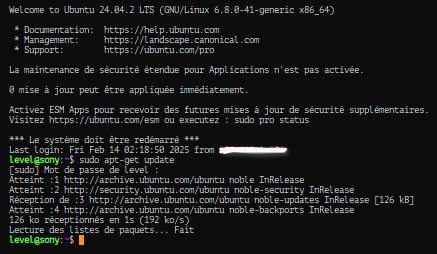
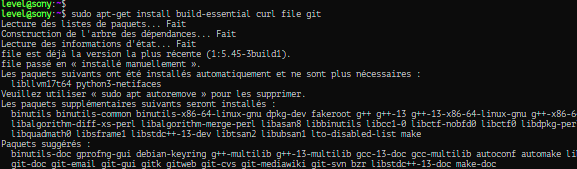
After installing the updates, set up the dependencies or packages required for the Ubuntu installation:
sudo apt install build-essential curl file git
Step 2: Install Zsh
To install it with apt:
~$ sudo apt-get install -y zsh
Step 3: Verify the Zsh Installation
With Zsh successfully installed, you can verify the installation by displaying the installed version using the following command:
~$ zsh --version

Step 4: Set Zsh as the Default Shell
Now that Zsh is installed, you can set Zsh as the default shell using the chsh command. Specify the -s option:
~$ chsh -s $(which zsh)
This command modifies the user’s /etc/passwd file to load Zsh as the default shell for your username during terminal sessions. After restarting your terminal, confirm the change by displaying the current shell using the $SHELL environment variable:
~$ echo $SHELL
Install Oh My Zsh on Ubuntu
Oh My Zsh is an open-source framework designed to elevate the features and capabilities of the Z Shell, aiming to improve productivity and enjoyment in the command-line environment. This framework provides a hassle-free installation process and efficient management of an extensive array of themes, plugins, and scripts.
Although you’ve switched to Zsh as your default shell, the experience may not be significantly different from Bash at this point. Rather than building ZSH from scratch independently, a more efficient approach is to leverage the Oh My Zsh ecosystem.

This allows you to explore and experiment with the wealth of tools and configurations already developed by the community, offering a more streamlined and enriched command-line experience.
You can install Oh My Zsh on Ubuntu/Debian using the following command:
- via cURL
~$ sh -c "$(curl -fsSL https://raw.githubusercontent.com/ohmyzsh/ohmyzsh/master/tools/install.sh)"
- via Wget
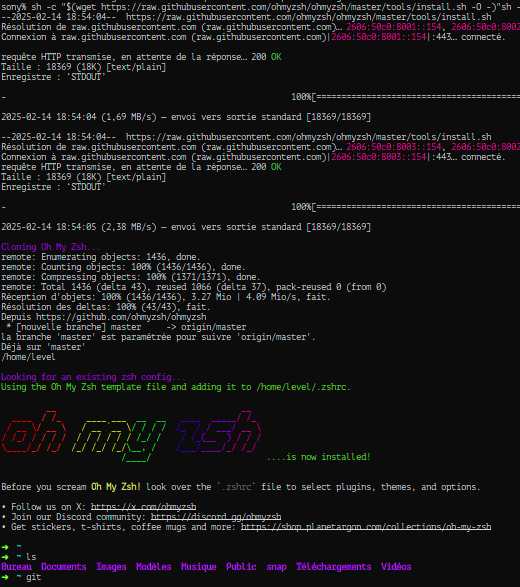
~$ sh -c "$(wget https://raw.githubusercontent.com/ohmyzsh/ohmyzsh/master/tools/install.sh -O -)"
Once the command is executed, if all the previous installation steps have been followed, you will have a new stylish and user-friendly shell with room for limitless configuration.