
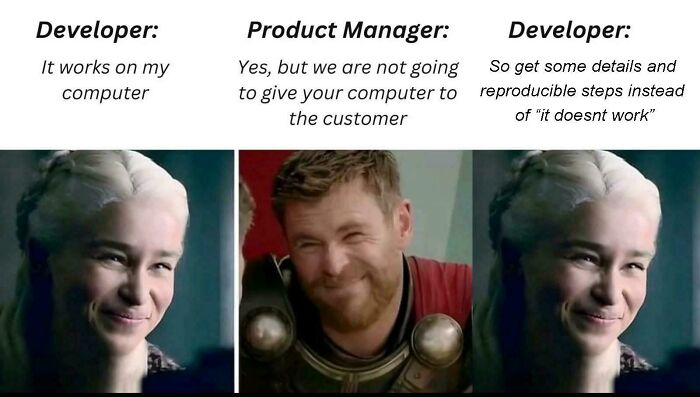
“It works on my machine!”
You’ve all heard this phrase (or said it yourself). I said it at least a dozen times during my high school projects. And my teachers too, when they tried to run my code on their computers…
This week, we started talking about development environments, dependencies, virtualization… and then, the teacher said: “Today, we’re going to look at Docker. It’s going to solve 90% of your ‘it doesn’t work on my computer’ problems.”
I’ll admit: at first, I was skeptical. Another tool to install, more weird commands… But after a couple of labs, I understood why everyone was talking about it as a revolution. And by digging into the history a bit (because the teacher had asked us to do some research), I realized that Docker didn’t come out of nowhere.
The Quick History of Docker (What I Learned from the Web)
It all started in 2008-2010 in Paris, with a Frenchman: Solomon Hykes. He co-founded a startup called dotCloud, a PaaS (Platform as a Service) platform kind of like Heroku, where developers could easily deploy their apps. Internally, dotCloud was already using Linux containers to isolate customer applications. But it was complicated and not very accessible.
In 2013, Solomon Hykes and his team decided to release the container engine they had developed internally. They called it Docker and made it open source during a presentation at PyCon US en mars 2013. The blue whale logo came shortly after (inspired by shipping containers, of course).
The success was lightning-fast:
- In 2014, Docker released version 1.0 and went from “cool thing” to “essential tool”
- Big companies (Google, Red Hat, AWS…) started adopting it
- Meanwhile, competitors/rivals appeared (CoreOS with rkt, etc.), but Docker won thanks to its simplicity and ecosystem (Docker Hub, ultra-readable Dockerfile)
- Later came Kubernetes (2014, by Google), which heavily relied on Docker containers initially
In short, today Docker is already the standard tool for packaging and deploying applications reliably, whether in dev, CI/CD, or production.
How I Discovered Docker (My Personal Journey)
At the beginning of the course, we just ran ready-made commands:
docker run hello-world
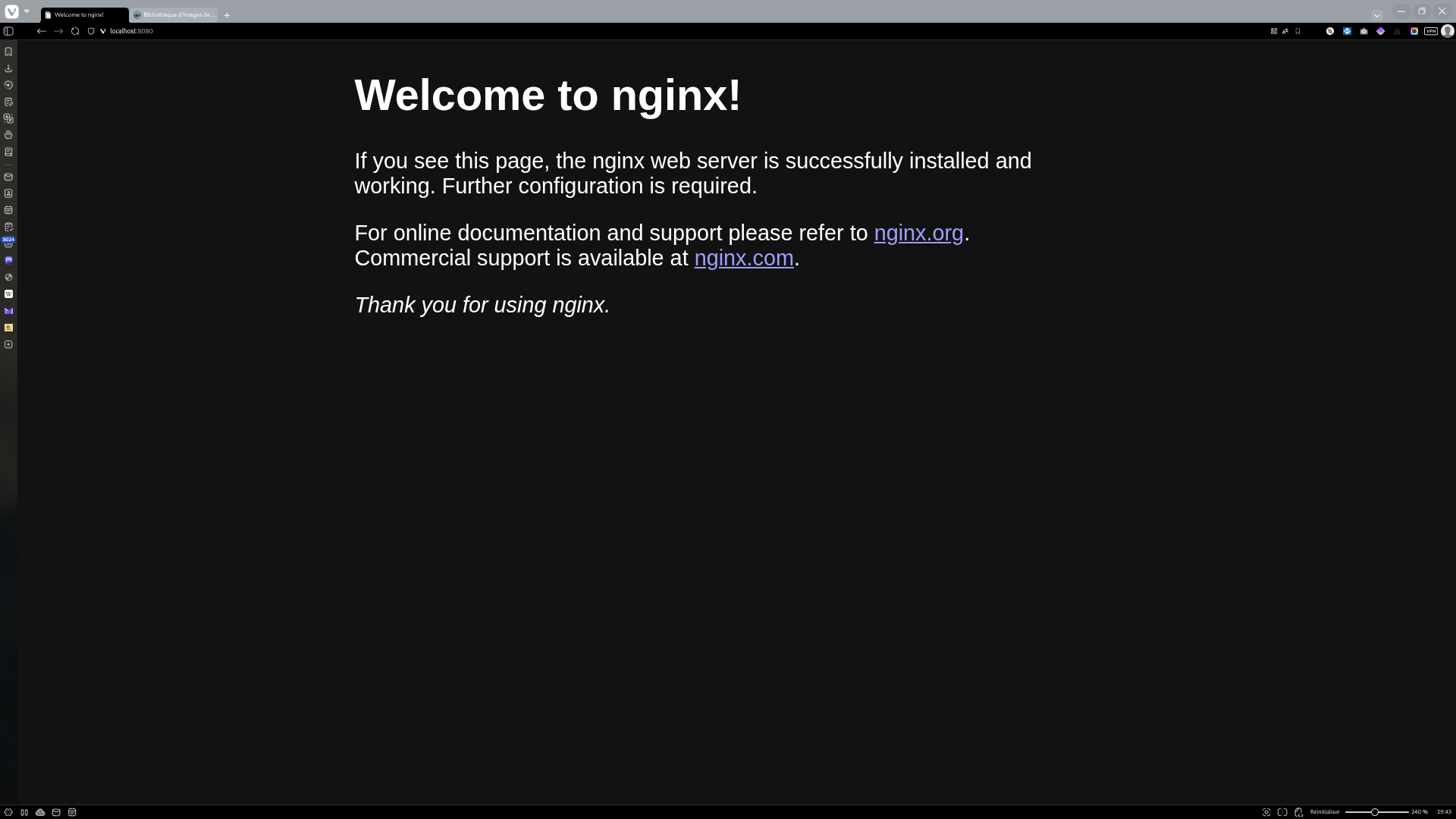
docker run -d -p 8080:80 nginx
And there… wow. In 5 seconds, a real Nginx web server running on my PC, without manually installing anything. I opened localhost:8080 and saw the default page. Magic.
Then we moved on to more concrete stuff:
- Launch a Python container to do exercises without polluting my computer
- Use a PostgreSQL image to test a database locally
- Create our first Dockerfile for a small Flask or Node.js project
The moment I really got it was when we cloned a classmate’s Git repo. He was on Windows + WSL, I was on native Ubuntu. Before Docker: Python version conflicts, pip problems, absolute paths breaking…
With Docker: docker-compose up and it runs everywhere. Exactly the same.
The Concepts I Retained (and Writing Here So I Don’t Forget)
Image: The Frozen “Mold”
Like a recipe + ready-to-use ingredients. An image is immutable: once created, it doesn’t change.
Container: A Running Instance
The ready-to-eat dish. A container is launched from an image and can be started, stopped, deleted.
Dockerfile: The Written Recipe
The file you version in your Git, which describes how to build your image.
Docker Hub: The “GitHub of Images”
The public registry with official versions (nginx, python, postgres…) and thousands of community images.
Step 1 – Install Docker (Current Version)
Choose your OS:
- Windows 10 / 11 Pro - Docker Desktop (WSL 2 or Hyper-V)
- macOS - Docker Desktop
- Linux (Ubuntu 24.04 / 22.04, Debian 12, Fedora…) - docker.io or official script
Most common magic line on recent Linux:
 curl -fsSL https://get.docker.com -o get-docker.sh
 sudo sh ./get-docker.sh --dry-run
 sudo usermod -aG docker $USER
# then log out / log back in
Verify:
docker --version
# should display something like Docker version 27.x.x or higher
For detailed installation instructions, check the official Docker documentation.
Step 2 – Launch Your First Container (Docker’s Hello World)
docker run hello-world
You should see a nice welcome message.
Step 3 – Something More Interesting
# A website in 1 line
docker run -d -p 8080:80 --name my-site nginx
Open your browser at http://localhost:8080
You see the Nginx welcome page!
Stop and remove:
docker stop my-site
docker rm my-site
Step 4 – Play with a Popular Image
# Python ready to go
docker run -it --rm python:3.13 bash
You’re now inside a container with Python 3.13 freshly installed!
# Inside the container:
python --version
pip install requests
python -c "import requests; print(requests.get('https://httpbin.org/ip').text)"
exit
The container disappears on its own thanks to --rm.
The 7 Docker Commands to Know on Day One
docker pull nginx               # Download an image
docker images                   # See local images
docker run -d -p 80:80 nginx    # Run in background + port forwarding
docker ps                       # See running containers
docker ps -a                    # See ALL containers (even stopped)
docker logs <container-name>    # View logs
docker stop <container-name>    # Stop cleanly
Real-World Example: Microservices Exam Project
For a practical example of Docker in action with microservices, check out this exam project:
Microservices Exam Project - A complete microservices architecture using Docker Compose, demonstrating service isolation and environment reproducibility.
Next Natural Step (Tomorrow or the Day After)
- Create your first Dockerfile (very simple to start)
- Run
docker build -t my-app . - Launch your own application in a container
Ultra-minimal example (Node.js):
# Use Node.js 20 image based on Alpine (lightweight)
FROM node:20-alpine

# Set working directory in the container
WORKDIR /app

# Copy all project files into the container
COPY . .

# Install npm dependencies
RUN npm install

# Command to run when container starts
CMD ["node", "index.js"]
Summary – What You Should Remember Today
An image = immutable blueprint
A container = process running from an image
docker run = the magic command to launch
Ports are published with -p host:container
Everything is disposable and reproducible
Basic commands I keep as favorites:
docker pull python:3.11-slim
docker run -it --rm python:3.11-slim bash
docker build -t my-app .
docker run -p 5000:5000 my-app
Why It Changed How I Work
Before: I spent 40% of the time configuring the environment, 60% coding.
With Docker: 95% coding, 5% writing two lines in a Dockerfile.
And especially: no more group arguments about “but why doesn’t it work on my machine?”. The teacher was right: Docker really solves that problem.
Conclusion
Docker isn’t just another tool. It’s a way of thinking about development: portable, reproducible, isolated.
If you’re starting out, don’t get hung up on all the technical details. Start simple:
- Install Docker
- Run
docker run hello-world - Test some images from Docker Hub
- Create your first Dockerfile
And you’ll see: very quickly, you won’t be able to do without it.
Goodbye “it works on my machine!”
Going Further
Official Documentation
- Docker Documentation
- Docker Hub
- Dockerfile Reference
- Docker Compose Documentation
- Best Practices for Writing Dockerfiles